Are you tired of hunching over your screen, battling neck pain, or struggling with a cluttered desk? If so, a PC monitor arm might be the ergonomic upgrade you desperately need. This comprehensive guide will help you navigate the world of monitor arms, ensuring you find the perfect solution to enhance your posture, reclaim desk space, and transform your work or gaming setup.
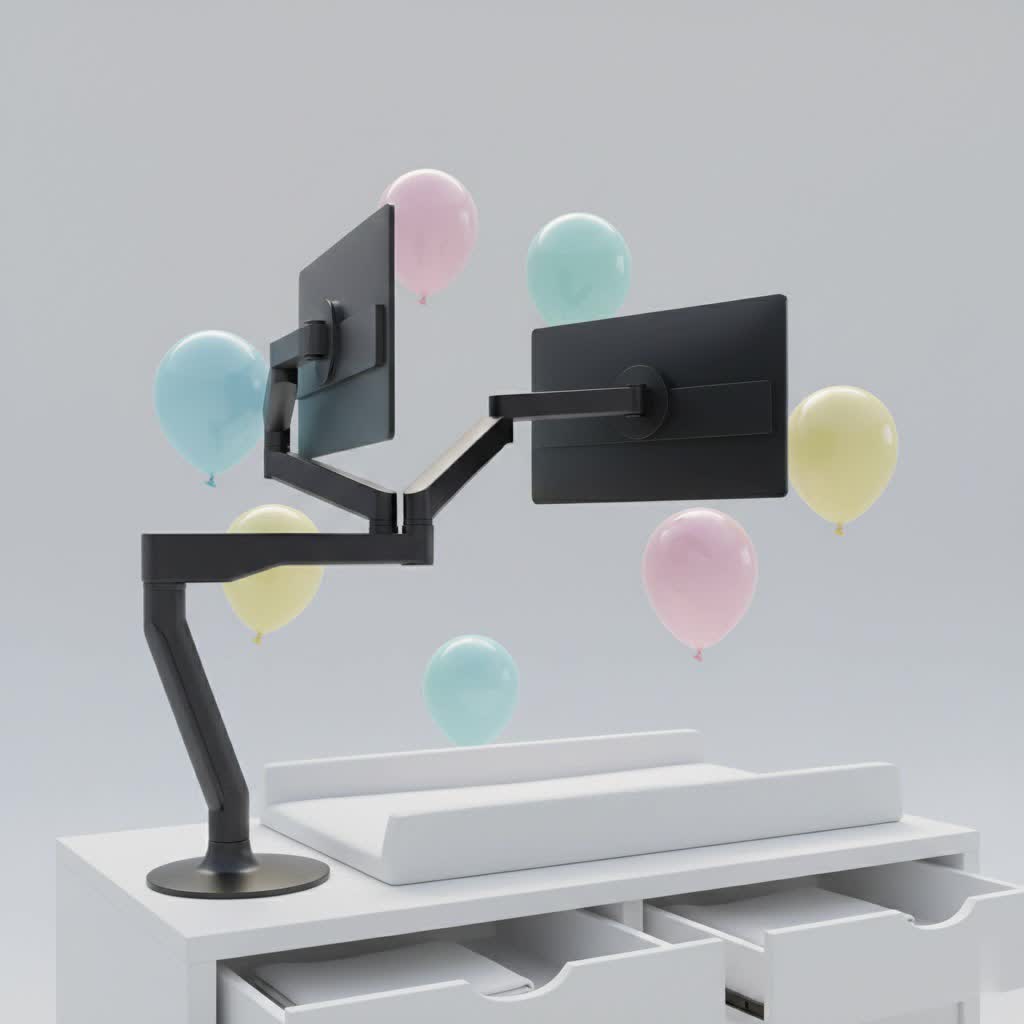
What is a PC Monitor Arm? Why Do You Need It?
A PC monitor arm is an adjustable mount designed to elevate and position your computer screen independently of its original stand. Far more flexible than static stands, these arms attach to your desk or wall, allowing you to freely adjust your monitor’s height, tilt, swivel, and rotation.
You need a PC monitor arm primarily for ergonomic benefits and workspace optimization. Prolonged screen use with poor posture often leads to discomfort, including neck strain, back pain, and eye fatigue. A monitor arm allows you to precisely align your screen to eye level, reducing strain and promoting a healthier sitting or standing posture. Additionally, by lifting your monitor off the desk surface, it frees up valuable real estate, creating a cleaner, more organized, and spacious environment crucial for productivity or an immersive gaming experience. This also simplifies cable management, leading to a tidier setup.
Popular Types of PC Monitor Arms
Understanding the different types of monitor arms is crucial for making an informed decision. Each offers unique advantages based on mounting style and adjustment mechanism.
Desk Mount Monitor Arms (Clamp & Grommet)
Desk mount monitor arms are the most common type, attaching directly to your desk. They typically come in two variations:
- Clamp Mount: These arms secure to the edge of your desk using a C-clamp.
- Pros: Easy to install and remove, no drilling required, flexible for repositioning.
- Cons: Requires sufficient desk edge space and suitable desk thickness.
- Grommet Mount: These arms bolt through an existing cable grommet hole or a drilled hole in your desk.
- Pros: Very stable, sleek appearance, saves more desk edge space than a clamp.
- Cons: Requires a hole in your desk, less flexible for repositioning.
|
Our Picks for the Best Monitor Arm in 2026
As an Amazon Associate I earn from qualifying purchases.
|
||
| Num | Product | Action |
|---|---|---|
| 1 | WALI Single Monitor Arm Mount Stand, Adjustable Gas Spring Arm Monitor Mount for Display up to 32 Inch,19.8lbs Capacity (GSMP001W), White |

|
| 2 | WALI Ultrawide Monitor Arm for 17-49 Inch Heavy Duty Curved Screens, Holds up to 44 Lbs, Adjustable Gas Spring Single Monitor Desk Mount with C-Clamp, Grommet Base, 75/100mm VESA, (GSM001XL), Black |
|
| 3 | WALI Ultrawide Monitor Arm for 13 to 49 Inch Heavy Duty Curved Screens, Adjustable Gas Spring Single Monitor Desk Mount with 2 USB 3.0 Ports, Holds 33 lbs, 75x75/100x100 VESA, Silver (GSMU001) |
|
| 4 | HUANUO Single Monitor Mount, 13 to 32 Inch Monitor Arm, Adjustable Monitor Stand, Vesa Mount with Clamp and Grommet Base - Fits 4.4 to 19.8lbs LCD Computer Monitors |
|
| 5 | HUANUO Dual Monitor Stand, Fully Adjustable Gaming Monitor Desk Mount for 13–32″ Computer Screens, Full Motion VESA 75x75/100x100 with C-Clamp & Grommet Base, Each Arm Holds 4.4 to 19.8 lbs |
|
| 6 | HUANUO Dual Monitor Stand, Fully Adjustable Monitor Desk Mount for 13–32″ Computer Screens, Full Motion VESA 75x75/100x100 with C-Clamp & Grommet Base, Each Arm Holds 4.4 to 19.8 lbs -Grey |
|
| 7 | HUANUO Single Monitor Mount, 13 to 32 Inch Gas Spring Monitor Arm, Adjustable Stand, Vesa Mount with Clamp and Grommet Base - Fits 4.4 to 19.8lbs LCD Computer Monitors |
|
| 8 | ARES WING Single Monitor Wall Mount for 17-40 Inch Ultrawide Screens, Heavy Duty Monitor Arm Up to 26.4 lbs, Fully Adjustable Wall Mount, VESA 75x75/100x100 Compatible, Black |
|
| 9 | WALI Ultrawide Monitor Arm for 13 to 49 Inch Heavy Duty Curved Screens, Adjustable Gas Spring Single Monitor Desk Mount with 2 USB 3.0 Ports, Holds 33 lbs, 75x75/100x100 VESA, White (GSMU001-W) |
|
| 10 | WALI Single Monitor Mount, Gas Spring Monitor Arm for 17-34 inch Screens, Adjustable Computer Monitors Stand up to 26.4lbs, with Clamp and Grommet Base, Mounting Holes 75 and 100mm (GSMP001N), Black |
|
Wall Mount Monitor Arms
As the name suggests, wall mount monitor arms attach directly to a wall.
- Pros: Completely frees up desk space, ideal for situations where desk mounting isn’t feasible or for a minimalist aesthetic.
- Cons: Requires drilling into a wall, permanent installation, less convenient for frequent repositioning of the entire setup. Best suited for fixed workstation layouts.
Mechanical Spring Monitor Arms
Mechanical spring arms use a robust internal spring mechanism to provide fluid and stable adjustments.
- Pros: Highly durable, reliable performance, often more affordable than gas spring models, good for consistent, stable positioning.
- Cons: May require more manual force for adjustments compared to gas springs, adjustments might feel less “effortless.”
Gas Spring Monitor Arms
Gas spring arms, also known as gas-assisted or dynamic arms, utilize a gas cylinder to counterbalance the monitor’s weight, offering exceptionally smooth and effortless adjustments.
- Pros: Superior adjustability with minimal effort, ideal for hot-desking or users who frequently change monitor positions (e.g., switching between sitting and standing).
- Cons: Generally more expensive than mechanical spring arms, may have a specific weight range they operate optimally within.
Comparison Table of PC Monitor Arm Types
Choosing the best monitor arm depends on your specific needs. Here’s a breakdown to help you compare.
| Feature | Desk Clamp Mount | Grommet Mount | Wall Mount | Mechanical Spring Arm | Gas Spring Arm |
|---|---|---|---|---|---|
| Installation | Easy, no drilling | Requires desk hole (pre-existing/drilled) | Requires wall drilling | Moderate, typically desk-mounted | Moderate, typically desk-mounted |
| Desk Space Saved | High, but uses desk edge | High | Maximum (off desk completely) | High | High |
| Adjustability | Good, depends on arm design | Good, depends on arm design | Good, depends on arm design | Good, stable, requires some force | Excellent, effortless, fluid |
| Stability | Very good | Excellent | Excellent | Very good | Very good |
| Mobility | Easy to reposition/remove desk-wide | Fixed position | Fixed position | Easy to adjust monitor position | Easiest to adjust monitor position |
| Aesthetics | Clean, can be minimalist | Very clean, integrated look | Extremely clean, floating screen | Clean, functional | Sleek, modern |
| Typical Price | Low to Mid | Mid | Mid to High | Low to Mid | Mid to High |
| Ideal For | Renters, varied desk setups | Permanent setups, clean aesthetic | Zero desk footprint, specific layouts | Budget-conscious, stable users | Frequent adjusters, sit-stand users |
How to Choose the Right PC Monitor Arm (Buying Guide)
Selecting the perfect PC monitor arm involves several key considerations to ensure compatibility, functionality, and long-term satisfaction.
Assess Your Needs
Start by evaluating your current setup and future aspirations.
- Monitor Size and Weight: Crucial for compatibility. Measure your monitor’s screen size and find its exact weight (often in the manual or online specifications). Not all arms can support every screen.
- Number of Monitors: Do you use a single display, a dual-monitor setup, or even three or more? Choose an arm designed for the correct number of screens. Stacking arms are available for vertical dual setups.
- Budget: Monitor arms range widely in price. Determine how much you’re willing to invest, balancing features with cost.
Check Technical Specifications
Delve into the details of potential monitor arms to ensure they meet your technical requirements.
- Load Capacity: This is paramount. The arm’s weight capacity must exceed or match your monitor’s weight to prevent sagging or damage.
- Adjustment Range: Look at the height, tilt (up/down), swivel (left/right), and rotation (portrait/landscape) capabilities. Ensure the arm provides enough range to achieve your ideal ergonomic position.
- VESA Compatibility: VESA (Video Electronics Standards Association) defines standard mounting hole patterns on the back of monitors. Most arms support 75x75mm or 100x100mm patterns. Check your monitor for these holes; if it’s not VESA compliant (e.g., some older Apple Macs), you might need a special adapter.
- Desk Compatibility: For clamp mounts, measure your desk thickness to ensure it falls within the arm’s supported range. For grommet mounts, confirm the hole size. Consider if your desk has a lip or other obstructions.
Material and Durability
The longevity and stability of your monitor arm depend heavily on its construction.
- Prioritize sturdy materials: Steel and aluminum are common choices, offering excellent strength and durability.
- Inspect joints and mechanisms: High-quality joints will feel solid and allow for smooth, controlled movements without wobbling. For gas spring arms, ensure the gas cylinder feels robust and responsive.
Brand and Reviews
Reputable brands often offer better build quality, warranties, and customer support.
- Research well-known brands: Look for companies specializing in ergonomic office equipment.
- Read user reviews: Gain insights into real-world performance, ease of installation, and potential issues from other users. Pay attention to comments regarding durability and adjustment over time.
Top PC Monitor Arms Currently Available
While specific product recommendations can vary, the “best” PC monitor arms typically excel in adjustability, stability, and thoughtful design. Look for models featuring gas spring mechanisms for effortless repositioning, especially if you frequently switch between sitting and standing, or if multiple users share the workstation. Heavy-duty monitor arms are essential for larger, heavier displays, ensuring optimal support and stability. Many top-tier arms also integrate excellent cable management systems, keeping your workspace tidy and professional. For dual or multi-monitor setups, prioritize arms that offer independent adjustment for each screen, allowing for personalized ergonomic alignment across all displays. High-quality construction from durable metals like steel and aluminum is a hallmark of reliable, long-lasting options, ensuring your investment stands the test of time.
Installation and Usage Guide for Your PC Monitor Arm
Installing a PC monitor arm is usually a straightforward process, but proper setup is key for ergonomics and safety.
- Read the Manual: Always start by carefully reading the manufacturer’s instructions, as steps can vary between models.
- Attach Mount to Desk/Wall:
- Clamp Mount: Secure the C-clamp to the back edge of your desk, ensuring it’s tightened firmly but not excessively, to avoid damaging the desk.
- Grommet Mount: Feed the mounting pole or base through the grommet hole and secure it from underneath the desk.
- Wall Mount: Locate a stud, drill pilot holes, and securely fasten the wall plate according to instructions.
- Assemble the Arm: Attach the arm segments to the mounting pole/base.
- Attach VESA Plate to Monitor: Screw the VESA plate (usually 75x75mm or 100x100mm) to the back of your monitor.
- Mount Monitor to Arm: Carefully lift your monitor and slide or click the VESA plate onto the arm’s head. Secure it as per instructions, often with a locking screw.
- Adjust Tension (Gas Spring/Spring Arms): If your arm has a tension adjustment screw, use the provided Allen wrench to fine-tune it. Turn clockwise for heavier monitors (more tension) and counter-clockwise for lighter monitors (less tension) until the monitor floats effortlessly in place.
- Cable Management: Route your display, power, and other cables through the arm’s integrated cable management channels to keep them organized and out of sight.
Tips for Optimal Usage:
- Eye Level: Position the top of your monitor screen roughly at eye level, so you’re looking slightly downwards at the center of the screen.
- Arm’s Length: Sit about an arm’s length away from your screen.
- Minimize Glare: Adjust tilt and swivel to avoid reflections from windows or lights.
- Frequent Adjustments: Don’t be afraid to adjust your monitor throughout the day, especially if you switch between sitting and standing or collaborate with others.
Maintaining Your PC Monitor Arm
Proper maintenance will ensure your monitor arm remains functional and looks great for years.
- Regular Cleaning: Wipe down the arm’s surfaces with a soft, damp cloth to remove dust and fingerprints. Avoid harsh chemicals that could damage the finish.
- Check Fasteners: Periodically inspect all screws and clamps to ensure they remain tight. Loose connections can lead to instability or sagging.
- Lubrication (if applicable): Some mechanical joints might benefit from a very light application of silicone-based lubricant if they start to feel stiff, but always check the manufacturer’s recommendations first. Gas springs generally do not require lubrication.
- Cable Management Review: Ensure cables are not pinched or stretched, especially after making adjustments to the arm. Reroute if necessary.
Conclusion
Investing in a PC monitor arm is one of the most impactful upgrades you can make to your workstation. It’s more than just an accessory; it’s a tool for enhancing ergonomics, boosting productivity, and reclaiming valuable desk space. By understanding the different types, crucial buying considerations, and proper usage, you can select the perfect monitor arm to support your health and optimize your digital environment. Don’t settle for a static setup when dynamic comfort is within reach. What aspects of your workspace will you transform first with a new monitor arm?
Frequently Asked Questions
How do I know if my monitor is VESA compatible?
To check VESA compatibility, look for four screw holes on the back of your monitor, typically arranged in a square pattern (75x75mm or 100x100mm). If you can’t see them, they might be covered by a removable stand or plate. Your monitor’s user manual will also confirm its VESA standard.
Can a monitor arm damage my desk?
A monitor arm, particularly a clamp-style one, can potentially damage a desk if not installed correctly or if the desk is made of fragile material. Always ensure the clamp is tightened firmly but not excessively, and consider using a protective pad between the clamp and your desk surface, especially for softer wood or glass desks.
Are gas spring monitor arms better than mechanical spring arms?
Gas spring arms generally offer smoother, more effortless adjustments, making them ideal for users who frequently change their monitor’s position, like those with sit-stand desks. Mechanical spring arms are often more budget-friendly and durable, providing stable support, though they may require a bit more force for adjustments. The “better” option depends on your specific usage frequency and budget.
How many monitors can a single arm support?
A “single arm” typically refers to an arm designed to hold one monitor. However, multi-monitor arms are available, which consist of a single mounting base with multiple articulating arms extending from it to support two, three, or even more screens. Always check the product description for the number of monitors supported.
What is the ideal ergonomic height for my monitor?
The ideal ergonomic height for your monitor is when the top edge of the screen is at or slightly below eye level. This allows you to view the entire screen without tilting your head up or down excessively, reducing strain on your neck and upper back.
